Wi-Fi association versus internet access
Open task Separate joining a network, reaching the internet and a network-specific failure.
Device evidence task · MacBook Air M1
Separate the M1 display-count limit from a cable, input or detection problem.
Planning estimate for recording observations; excludes charging, backups, drying and service. Not a measured repair time.
Enable JavaScript to record observations. The complete preparation guide is available below.
The M1 Air supports one native external display, up to 6K at 60 Hz. Record a second native display as outside this task; software-driven display adapters need their own support.
Source: MacBook Air (M1, 2020) technical specifications · Display Support
Keep the lid open. Connect the powered monitor directly, removing the dock from this comparison. Confirm the monitor input and video capability of the cable/adapter.
Source: External display dark or low resolution · Check cables and connections
Open Displays in System Settings, or System Preferences on older macOS. Hold Option to expose Detect Displays. If the Mac asks to allow your own display, review that request locally.
Source: External display dark or low resolution · Detect your display / Allow your display to connect
Record whether the monitor is detected separately from whether an image appears. Compare one documented compatible cable while holding monitor, input and display mode constant.
Source: External display dark or low resolution · Check cables / Find out what your Mac supports; original matrix
If direct video works and the dock path fails, keep that distinction for the dock vendor. A blank image after detection should include the monitor’s input and brightness checks.
Source: External display dark or low resolution · Check cables / Check display brightness
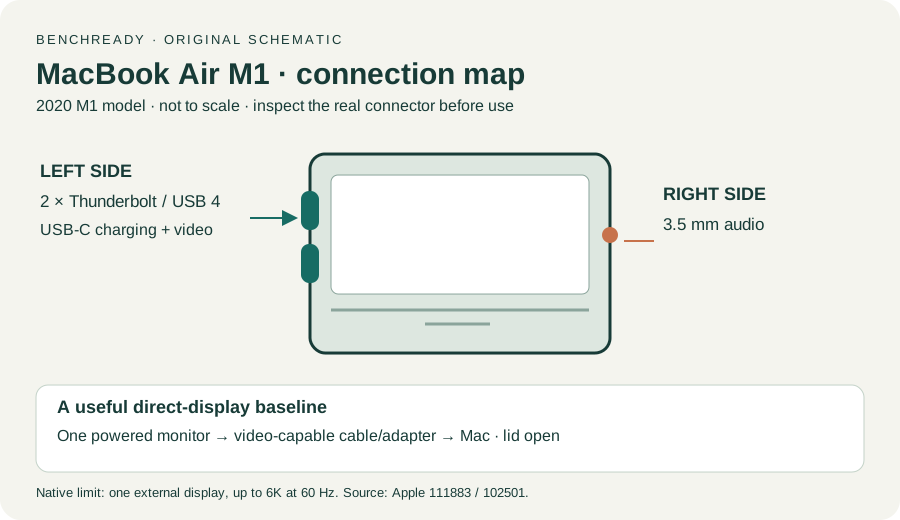
Connections / Support limits / Detection / Accessory permission · Checked 2026-10-13
Direct video path, Detect Displays and detection versus image
Reference only. Original paraphrase and observation worksheets; no copied images or manual pages.
Charging and Expansion / Display Support · Checked 2026-10-13
Two USB-C Thunderbolt/USB4 ports and one native external display up to 6K at 60 Hz
Reference only. Original paraphrase and observation worksheets; no copied images or manual pages.
Handling / Built-in battery / Charging · Checked 2026-10-13
General damaged-equipment and moisture safety only; M1-specific connections are sourced from mac-spec
Reference only. Original paraphrase and observation worksheets; no copied images or manual pages.
Find model / MacBook Air M1 2020 · Checked 2026-10-04
Model and chip confirmation
Reference only. Original paraphrase; no copied images or manual pages.
Prepare / Apple silicon / Run Apple Diagnostics / Results · Checked 2026-10-13
M1 Options then Command-D; Tahoe 26+ selected tests versus earlier automatic testing; preserve reference code
Reference only. Original paraphrase and observation worksheets; no copied images or manual pages.
Original preparation workflow based on the linked documents. No hands-on device repair testing is claimed.