Wi-Fi association versus internet access
Open task Separate joining a network, reaching the internet and a network-specific failure.
Device evidence task · MacBook Air M1
Separate wrong characters, delayed keys and complete input loss with a local sample.
Planning estimate for recording observations; excludes charging, backups, drying and service. Not a measured repair time.
Enable JavaScript to record observations. The complete preparation guide is available below.
Try a short nonprivate sample in a blank local document. Record wrong characters, delay or absent input; keep the actual sample off this page.
Source: Mac does not respond to key presses · If other keys do not work; original observation worksheet
If no built-in keys respond, connect safe power. Apple notes an unseen low-battery alert can be involved; an owned external keyboard may help reach settings.
Source: Mac does not respond to key presses · If no keys work on the built-in keyboard
Inspect Slow Keys under Accessibility → Keyboard and Mouse Keys under Pointer Control. Preserve accessibility settings you depend on. On older macOS, select the matching version of Apple’s guide.
Source: Mac does not respond to key presses · If other keys do not work → Slow Keys / Mouse Keys
Check the selected input layout when characters differ from key labels. Compare the same sample in a second local app with the layout unchanged.
Source: Mac does not respond to key presses · If other keys do not work → keyboard layout; original app comparison
Retain the affected key group, input category and app difference. If basic typing remains unusable, contact Apple; leave keycaps in place.
Source: Mac does not respond to key presses · Keyboard troubleshooting / service; conservative scope
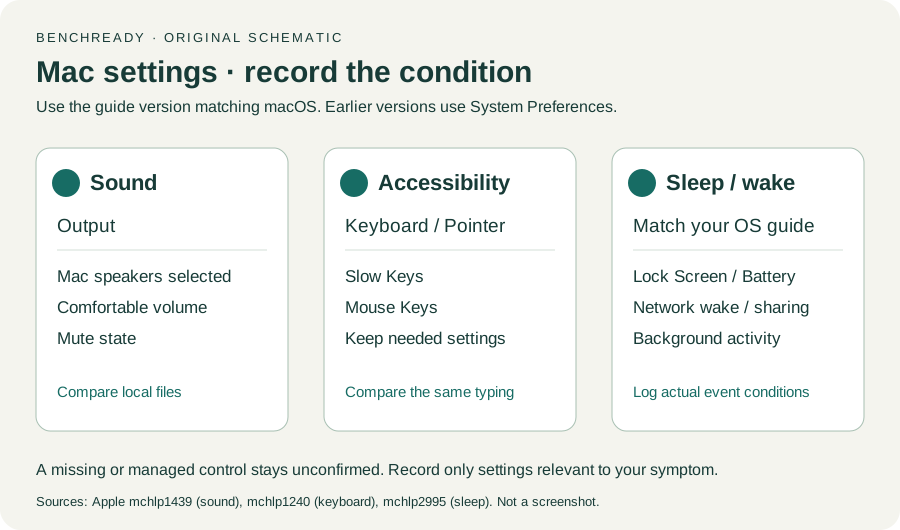
Built-in keyboard / Other keys · Checked 2026-10-13
Low battery, Slow Keys, Mouse Keys and input layout
Reference only. Original paraphrase and observation worksheets; no copied images or manual pages.
Handling / Built-in battery / Charging · Checked 2026-10-13
General damaged-equipment and moisture safety only; M1-specific connections are sourced from mac-spec
Reference only. Original paraphrase and observation worksheets; no copied images or manual pages.
Find model / MacBook Air M1 2020 · Checked 2026-10-04
Model and chip confirmation
Reference only. Original paraphrase; no copied images or manual pages.
Charging and Expansion / Display Support · Checked 2026-10-13
Two USB-C Thunderbolt/USB4 ports and one native external display up to 6K at 60 Hz
Reference only. Original paraphrase and observation worksheets; no copied images or manual pages.
Prepare / Apple silicon / Run Apple Diagnostics / Results · Checked 2026-10-13
M1 Options then Command-D; Tahoe 26+ selected tests versus earlier automatic testing; preserve reference code
Reference only. Original paraphrase and observation worksheets; no copied images or manual pages.
Opening / Built-in speakers / External outputs · Checked 2026-10-13
App volume, local source and selected built-in output
Reference only. Original paraphrase and observation worksheets; no copied images or manual pages.
Check sleep settings / Network access / Sharing / Activity / Something else is waking your Mac · Checked 2026-10-13
Sleep/wake settings, background activity and peripheral comparison
Reference only. Original paraphrase and observation worksheets; no copied images or manual pages.
Original preparation workflow based on the linked documents. No hands-on device repair testing is claimed.