One native external display on M1 Air
Open task Separate the M1 display-count limit from a cable, input or detection problem.
Service handoff pack · MacBook Air M1
Separate display limits, USB accessory power and Wi-Fi reachability before escalating a desk setup fault.
Planning estimate for assembling existing evidence; excludes testing, backup and service.
Enable JavaScript to record observations. The complete preparation guide is available below.
Save observations in each relevant task. Return here to include their records in one export; untouched tasks remain “not started”.
Separate the M1 display-count limit from a cable, input or detection problem.
Determine whether the warning follows an accessory, a port or a hub power arrangement.
Separate joining a network, reaching the internet and a network-specific failure.
Map the desk setup: Record display count and direct/dock paths before disconnecting safe accessories. The M1 Air supports one native external display; keep unsupported requests separate. Choose one known network and avoid entering its name or password in this report.
Source: MacBook Air (M1, 2020) technical specifications; External display dark or low resolution; USB Devices Disabled on Mac; Mac cannot connect to the internet over Wi-Fi · Preparation pack synthesis of the linked manufacturer tasks; individual operations retain their task-specific source sections.
Compare one condition at a time: Use the display task to separate cable/input and supported configuration. Use the USB task to compare a single accessory and its required power. Record whether another device reaches the internet on the same network.
Source: MacBook Air (M1, 2020) technical specifications; External display dark or low resolution; USB Devices Disabled on Mac; Mac cannot connect to the internet over Wi-Fi · Preparation pack synthesis of the linked manufacturer tasks; individual operations retain their task-specific source sections.
Provide a reproducible setup: Tell the provider which direct condition worked and which dock condition failed. Bring only the relevant safe accessory if requested. Keep network credentials and personal device contents private.
Source: MacBook Air (M1, 2020) technical specifications; External display dark or low resolution; USB Devices Disabled on Mac; Mac cannot connect to the internet over Wi-Fi · Preparation pack synthesis of the linked manufacturer tasks; individual operations retain their task-specific source sections.
Reassemble carefully: Reconnect the verified display and accessories one at a time. Repeat the same supported configuration and network control. Retain the first connection that reintroduces a symptom.
Source: MacBook Air (M1, 2020) technical specifications; External display dark or low resolution; USB Devices Disabled on Mac; Mac cannot connect to the internet over Wi-Fi · Preparation pack synthesis of the linked manufacturer tasks; individual operations retain their task-specific source sections.
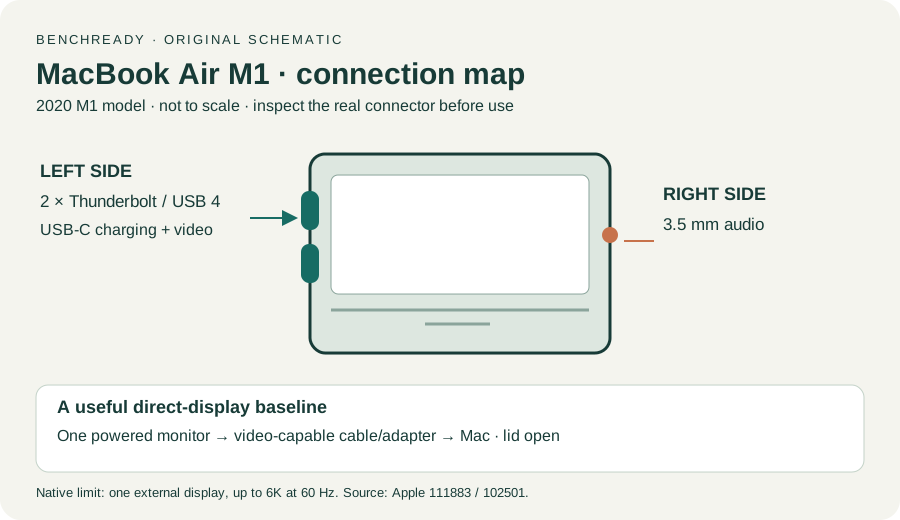
Charging and Expansion / Display Support · Checked 2026-10-13
Two USB-C Thunderbolt/USB4 ports and one native external display up to 6K at 60 Hz
Reference only. Original paraphrase and observation worksheets; no copied images or manual pages.
Connections / Support limits / Detection / Accessory permission · Checked 2026-10-13
Direct video path, Detect Displays and detection versus image
Reference only. Original paraphrase and observation worksheets; no copied images or manual pages.
Troubleshooting list · Checked 2026-10-13
Other port, direct accessory and documented self-powered hub supply
Reference only. Original paraphrase and observation worksheets; no copied images or manual pages.
Connection / Date and time / Diagnostics / Different network · Checked 2026-10-13
Association versus internet, permitted network comparison and Wireless Diagnostics
Reference only. Original paraphrase and observation worksheets; no copied images or manual pages.
Find model / MacBook Air M1 2020 · Checked 2026-10-04
Model and chip confirmation
Reference only. Original paraphrase; no copied images or manual pages.
Prepare / Apple silicon / Run Apple Diagnostics / Results · Checked 2026-10-13
M1 Options then Command-D; Tahoe 26+ selected tests versus earlier automatic testing; preserve reference code
Reference only. Original paraphrase and observation worksheets; no copied images or manual pages.
Original preparation workflow based on the linked documents. No hands-on device repair testing is claimed.