Touch response across surface and accessories
Open task Compare the same touch action with a dry screen, no cable and removable coverings removed.
Device evidence task · iPhone 13
Separate local speaker output from settings and call-reception symptoms.
Planning estimate for recording observations; excludes charging, backups, drying and service. Not a measured repair time.
Enable JavaScript to record observations. The complete preparation guide is available below.
For this check, move Ring/Silent so orange is hidden. Check Focus → Do Not Disturb and note whether it was enabled.
Source: No sound or distorted iPhone speaker · Check sound settings
Remove a removable covering that blocks sound. Brush only accessible surface dirt with a clean dry soft brush if needed.
Source: No sound or distorted iPhone speaker · Clean receiver and speaker openings
Open Settings → Sounds & Haptics and move Ringtone and Alerts at a comfortable level. Record audible sound and whether the speaker control is dimmed.
Source: No sound or distorted iPhone speaker · Ringtone and Alerts slider
If ringtone sound works, compare a normal call with speakerphone. Do not increase volume to compensate for distortion.
Source: No sound or distorted iPhone speaker · Try a call using speakerphone
If only calls crackle or fail, compare normal reception at another location when convenient. Report call-only versus local-sound failure.
Source: No sound or distorted iPhone speaker · Network or reception; different location
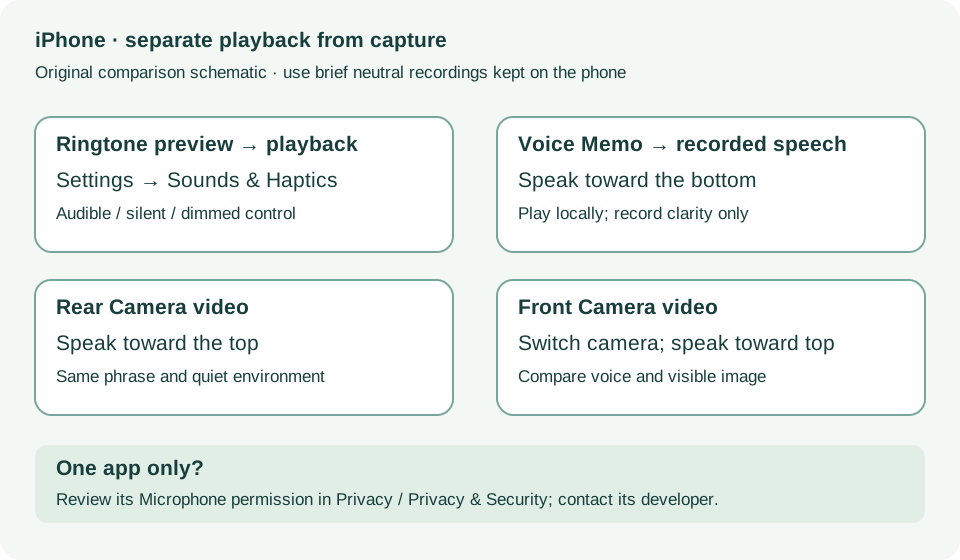
Troubleshoot your speaker, steps 1–7 · Checked 2026-10-13
Silent switch, Focus, speaker openings, ringtone and call comparisons
Reference only. Bounded original paraphrase and original schematics; no copied support images or pages.
External Buttons and Connectors; Power and Battery · Checked 2026-10-13
Lightning, physical controls and wireless charging applicability
Reference only. Bounded original paraphrase and original schematics; no copied support images or pages.
Handling; Repairing; Battery; Charging · Checked 2026-10-13
Stop use for suspected damage and use trained battery service
Reference only. Bounded original paraphrase and original schematics; no copied support images or pages.
Find the model name / iPhone 13 · Checked 2026-10-04
Model confirmation
Reference only. Original paraphrase; no copied images or manual pages.
Get ready; Bring in; Get back from service · Checked 2026-10-13
Backup, OS-specific service readiness, credential privacy and returned-device data
Reference only. Bounded original paraphrase and original schematics; no copied support images or pages.
Phone calls; Speakerphone; Specific app · Checked 2026-10-13
Voice Memos, two camera recordings and microphone permissions
Reference only. Bounded original paraphrase and original schematics; no copied support images or pages.
Remove case/accessory/film; More steps; Get service · Checked 2026-10-13
Front/rear camera and flashlight comparisons
Reference only. Bounded original paraphrase and original schematics; no copied support images or pages.
Original preparation workflow based on the linked documents. No hands-on device repair testing is claimed.