Apple Diagnostics with the right macOS branch
Open task Capture an Apple silicon diagnostic result and identify exactly which tests ran.
Device evidence task · MacBook Air M1
Record normal startup and Options visibility before further recovery decisions.
Planning estimate for recording observations; excludes charging, backups, drying and service. Not a measured repair time.
Enable JavaScript to record observations. The complete preparation guide is available below.
Distinguish the built-in screen from an external monitor. Record any logo, progress or Options previously visible; a brief blank period differs from a persistent blank screen.
Source: Mac starts up to a blank screen · Opening / external display note
If normal shutdown is unavailable, Apple describes holding power/Touch ID for up to 10 seconds until off, then turning on. Consider unsaved work before this necessary forced shutdown.
Source: Mac starts up to a blank screen · Turn your Mac off and back on
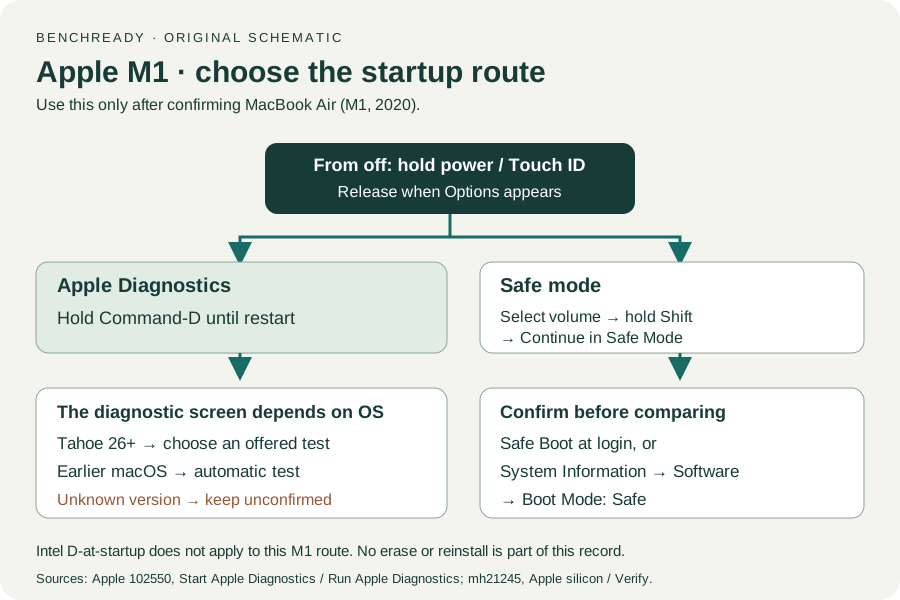
From off, holding power on M1 can show startup Options. Release at Options and record whether it appears; this observation does not require erase, reinstall or firmware work.
Source: Use Apple Diagnostics to test your Mac · Apple silicon, steps 1–2; observation-only scope
If the built-in desktop works, route an external-only blank screen to the single-display task. Otherwise preserve normal-startup and Options results separately.
Source: Mac starts up to a blank screen; External display dark or low resolution · External display note / If still need help
Tell Apple about backup availability before discussing Recovery or firmware procedures. The service provider should assess any data-affecting next action.
Source: Mac starts up to a blank screen; Get your Mac ready for service · Recovery / cannot start Recovery; Make a backup
Turn off and on / Recovery / Service · Checked 2026-10-13
Up-to-10-second power action and service routing; this worksheet excludes disk/firmware operations
Reference only. Original paraphrase and observation worksheets; no copied images or manual pages.
Prepare / Apple silicon / Run Apple Diagnostics / Results · Checked 2026-10-13
M1 Options then Command-D; Tahoe 26+ selected tests versus earlier automatic testing; preserve reference code
Reference only. Original paraphrase and observation worksheets; no copied images or manual pages.
Connections / Support limits / Detection / Accessory permission · Checked 2026-10-13
Direct video path, Detect Displays and detection versus image
Reference only. Original paraphrase and observation worksheets; no copied images or manual pages.
Make a backup / Arrange service / Check settings · Checked 2026-10-13
Data may be erased or storage replaced; actual-OS service requirements; original post-service acceptance worksheet
Reference only. Original paraphrase and observation worksheets; no copied images or manual pages.
Handling / Built-in battery / Charging · Checked 2026-10-13
General damaged-equipment and moisture safety only; M1-specific connections are sourced from mac-spec
Reference only. Original paraphrase and observation worksheets; no copied images or manual pages.
Find model / MacBook Air M1 2020 · Checked 2026-10-04
Model and chip confirmation
Reference only. Original paraphrase; no copied images or manual pages.
Charging and Expansion / Display Support · Checked 2026-10-13
Two USB-C Thunderbolt/USB4 ports and one native external display up to 6K at 60 Hz
Reference only. Original paraphrase and observation worksheets; no copied images or manual pages.
Apple silicon / Verify safe mode · Checked 2026-10-13
M1 power, startup volume, Shift + Continue in Safe Mode and Boot Mode verification
Reference only. Original paraphrase and observation worksheets; no copied images or manual pages.
Original preparation workflow based on the linked documents. No hands-on device repair testing is claimed.