USB-C charging: cable, power and workload
Open task Build a one-change-at-a-time charging comparison before replacing an accessory or battery.
Device evidence task · MacBook Air M1
Capture an Apple silicon diagnostic result and identify exactly which tests ran.
Planning estimate for recording observations; excludes charging, backups, drying and service. Not a measured repair time.
Enable JavaScript to record observations. The complete preparation guide is available below.
Shut down, leave only the permitted keyboard, mouse, display, Ethernet and power connections, and place the Mac on a firm ventilated surface. Record which accessories remain.
Source: Use Apple Diagnostics to test your Mac · Prepare your Mac, steps 2–4
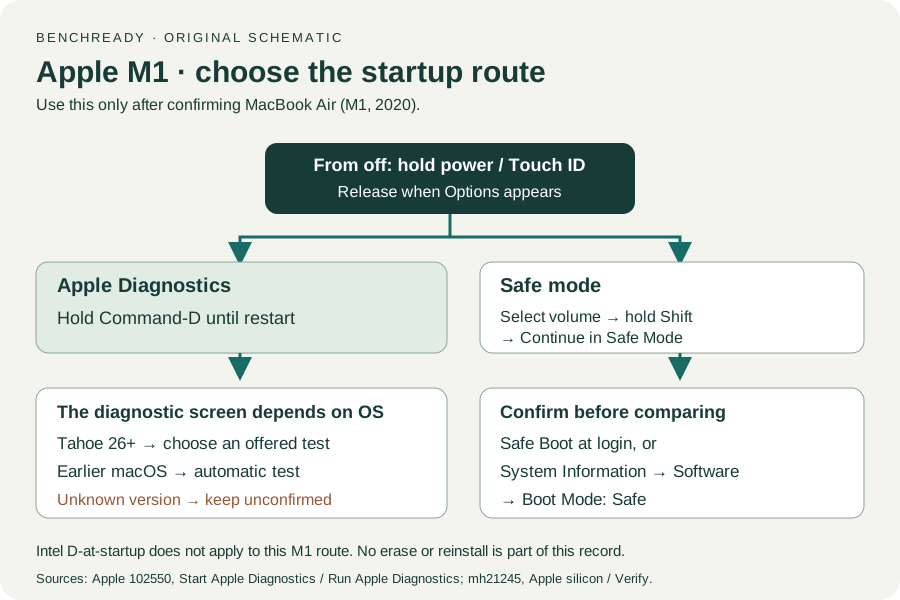
Hold power/Touch ID until Options appears, then release. Hold Command-D until the Mac restarts. The Intel D-at-startup method is not the M1 entry.
Source: Use Apple Diagnostics to test your Mac · Start Apple Diagnostics → Apple silicon; contrast with Intel processor
Choose the macOS branch below. Tahoe 26 and later asks which diagnostic to run; earlier macOS starts testing automatically. If the version is unknown, preserve the screen observation and ask Apple which flow applies.
Source: Use Apple Diagnostics to test your Mac · Run Apple Diagnostics → macOS Tahoe 26 and later
Follow the displayed connection and test prompts. If an offline option is offered, Apple directs you to use it unless support initiated an online session. On 26+, record the selected test as well as its result.
Source: Use Apple Diagnostics to test your Mac · Run Apple Diagnostics → connection, terms and test selection
Retain any reference code for Apple. Distinguish a completed test, an interrupted test, and a symptom that remains after a completed test. A result covers the test that ran; include untested conditions in the handoff.
Source: Use Apple Diagnostics to test your Mac · View Apple Diagnostics test results
Prepare / Apple silicon / Run Apple Diagnostics / Results · Checked 2026-10-13
M1 Options then Command-D; Tahoe 26+ selected tests versus earlier automatic testing; preserve reference code
Reference only. Original paraphrase and observation worksheets; no copied images or manual pages.
Charging and Expansion / Display Support · Checked 2026-10-13
Two USB-C Thunderbolt/USB4 ports and one native external display up to 6K at 60 Hz
Reference only. Original paraphrase and observation worksheets; no copied images or manual pages.
Handling / Built-in battery / Charging · Checked 2026-10-13
General damaged-equipment and moisture safety only; M1-specific connections are sourced from mac-spec
Reference only. Original paraphrase and observation worksheets; no copied images or manual pages.
Find model / MacBook Air M1 2020 · Checked 2026-10-04
Model and chip confirmation
Reference only. Original paraphrase; no copied images or manual pages.
Apple silicon / Verify safe mode · Checked 2026-10-13
M1 power, startup volume, Shift + Continue in Safe Mode and Boot Mode verification
Reference only. Original paraphrase and observation worksheets; no copied images or manual pages.
Original preparation workflow based on the linked documents. No hands-on device repair testing is claimed.