Apple Diagnostics with the right macOS branch
Open task Capture an Apple silicon diagnostic result and identify exactly which tests ran.
Device evidence task · MacBook Air M1
Build a one-change-at-a-time charging comparison before replacing an accessory or battery.
Planning estimate for recording observations; excludes charging, backups, drying and service. Not a measured repair time.
Enable JavaScript to record observations. The complete preparation guide is available below.
Inspect the adapter, cable and accessible port without inserting a tool. Set damaged equipment aside. Use the model’s USB-C connection; a USB-C shape alone does not establish that a cable can charge.
Source: If your Mac battery will not charge; MacBook Air (M1, 2020) technical specifications · Check the hardware → inspect / different cable; Charging and Expansion
Connect directly to a working outlet and Mac, leaving the dock out. Record whether external power is recognized and whether the battery says charging or paused.
Source: If your Mac battery will not charge · Check the hardware → outlet / power adapter
If a compatible spare exists, change the cable while keeping adapter, outlet and workload constant; then restore the baseline before comparing another adapter. Label missing spares Not tested.
Source: If your Mac battery will not charge · Check the hardware → use a different cable / power adapter; original comparison worksheet
Compare the same direct setup during light use. Review the displayed battery-health/charging state; workload and charging optimization can explain a pause without identifying a failed battery.
Source: If your Mac battery will not charge · Check the software → high performance / battery health
Save work before a normal restart if needed. For Apple silicon, Apple’s power-management advice is a restart; do not follow an Intel SMC key sequence. Record whether the symptom returned.
Source: If your Mac battery will not charge · Check the software → SMC, Apple silicon
Check the software / Check the hardware · Checked 2026-10-13
Compatible charging equipment, recognition/load comparison and Apple silicon restart
Reference only. Original paraphrase and observation worksheets; no copied images or manual pages.
Charging and Expansion / Display Support · Checked 2026-10-13
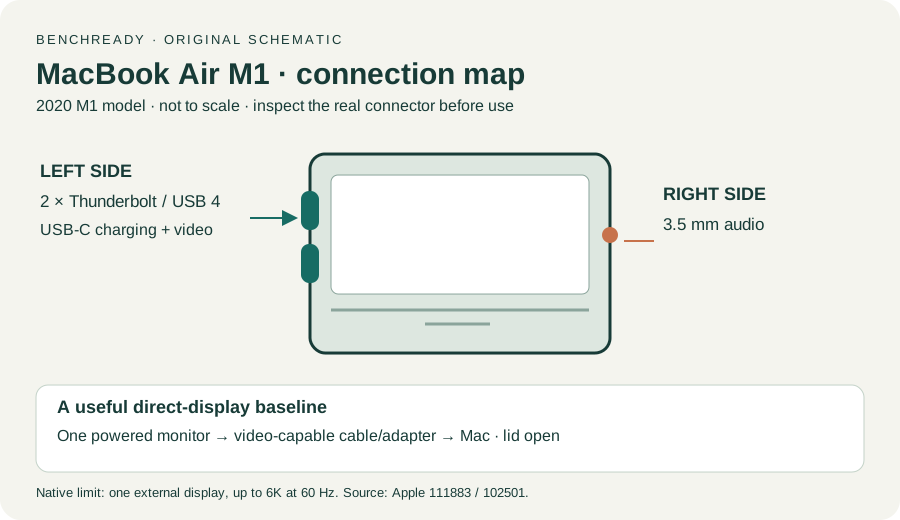
Two USB-C Thunderbolt/USB4 ports and one native external display up to 6K at 60 Hz
Reference only. Original paraphrase and observation worksheets; no copied images or manual pages.
Handling / Built-in battery / Charging · Checked 2026-10-13
General damaged-equipment and moisture safety only; M1-specific connections are sourced from mac-spec
Reference only. Original paraphrase and observation worksheets; no copied images or manual pages.
Find model / MacBook Air M1 2020 · Checked 2026-10-04
Model and chip confirmation
Reference only. Original paraphrase; no copied images or manual pages.
Prepare / Apple silicon / Run Apple Diagnostics / Results · Checked 2026-10-13
M1 Options then Command-D; Tahoe 26+ selected tests versus earlier automatic testing; preserve reference code
Reference only. Original paraphrase and observation worksheets; no copied images or manual pages.
Connections / Support limits / Detection / Accessory permission · Checked 2026-10-13
Direct video path, Detect Displays and detection versus image
Reference only. Original paraphrase and observation worksheets; no copied images or manual pages.
Original preparation workflow based on the linked documents. No hands-on device repair testing is claimed.