Camera shutter, permissions and app preview
Open task Separate a covered lens, denied access and an app-specific black camera preview.
Device evidence task · ThinkPad T14 Gen 2 Intel
Compare a single monitor through a documented Intel video connection and preserve detection versus image.
Planning estimate for recording observations; excludes charging, backups, drying and service. Not a measured repair time.
Enable JavaScript to record observations. The complete preparation guide is available below.
Use the Intel connector layout: the guide identifies Thunderbolt 4 USB-C and HDMI. A charging cable alone does not establish video capability; check the cable documentation.
Source: ThinkPad T14 Gen 2 user guide · Printed p. 4 → Intel side view; p. 7 → USB; p. 16 → wired display
Remove the dock from the comparison. Connect one powered display directly through a documented compatible cable and select its matching input.
Source: ThinkPad T14 Gen 2 user guide · Printed p. 16 → Connect to a wired display; original direct baseline
Right-click a blank desktop area, open Display settings and use the displayed detection control if needed. Record detected-with-image, detected-but-dark or absent.
Source: ThinkPad T14 Gen 2 user guide · Printed pp. 16–17 → detection and display settings
Review the selected display and mode in Windows. Keep the monitor, input and mode fixed while comparing one known-compatible cable. Use settings supported by both devices.
Source: ThinkPad T14 Gen 2 user guide · Printed pp. 16–17 → supported connection / mode / settings
Only after the direct result is recorded, compare the exact supported dock path. Optional docking connectors differ by configuration; record unsupported or unavailable hardware separately.
Source: ThinkPad T14 Gen 2 user guide · Printed pp. 4–5 → optional extension connector; pp. 27–31 → docking support
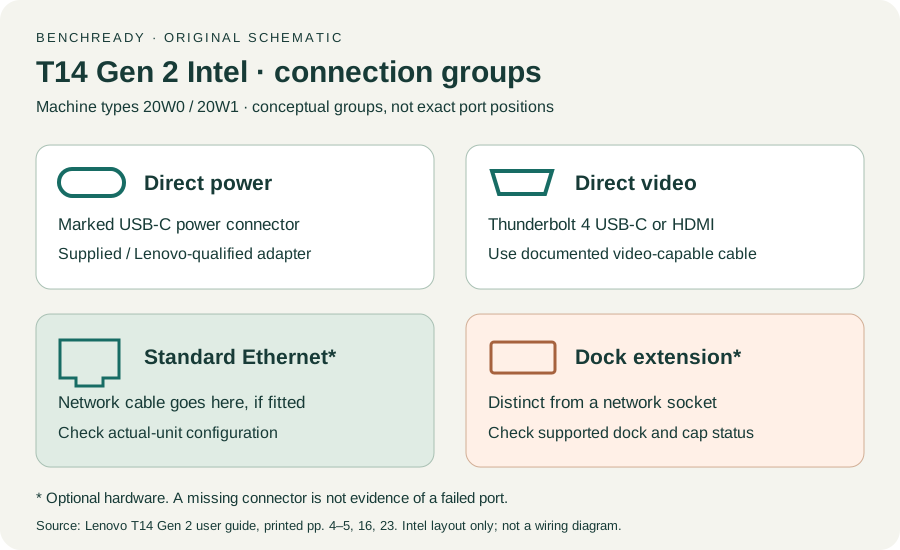
Printed pp. 1–5, 9–14, 16–19, 23–25, 27–33, 62, 65–67 · Checked 2026-10-13
Existing local official PDF/text reviewed for Intel layout, optional hardware, controls, Vantage, power and support
Reference only. Original paraphrase and observation worksheets; no copied images or manual pages.
Original preparation workflow based on the linked documents. No hands-on device repair testing is claimed.