Camera shutter, permissions and app preview
Open task Separate a covered lens, denied access and an app-specific black camera preview.
Device evidence task · ThinkPad T14 Gen 2 Intel
Identify which TrackPoint control is affected without removing keys or replacing the cap.
Planning estimate for recording observations; excludes charging, backups, drying and service. Not a measured repair time.
Enable JavaScript to record observations. The complete preparation guide is available below.
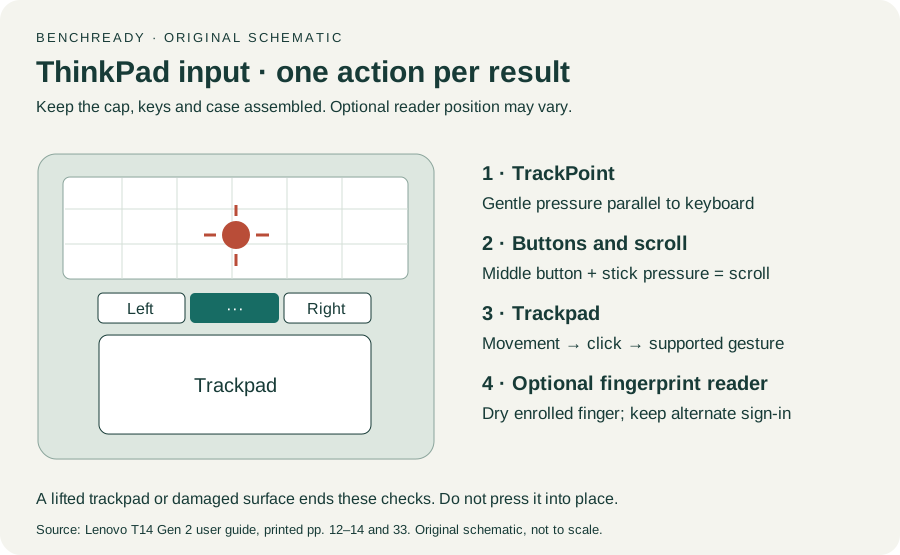
Use gentle sideways pressure on the red pointing-stick cap, parallel to the keyboard. Record pointer response without pulling the cap or using a hard object.
Source: ThinkPad T14 Gen 2 user guide · Printed p. 12 → TrackPoint pointing stick
Inspect TrackPoint enablement through the installed Windows/Lenovo mouse controls. Use Settings search for Mouse if the manual’s Windows 10 menu path differs.
Source: ThinkPad T14 Gen 2 user guide · Printed p. 12 → Disable TrackPoint; OS-label caveat
Compare the separate left and right TrackPoint buttons on an ordinary local control. Record a button-specific failure separately from pointer movement.
Source: ThinkPad T14 Gen 2 user guide · Printed p. 12 → TrackPoint buttons
For scrolling, hold the dotted middle button while applying vertical or horizontal pressure to the stick. Test a scrollable local document and then another supported app.
Source: ThinkPad T14 Gen 2 user guide · Printed p. 12 → middle-button scrolling
Preserve movement, click and scroll results separately. Ask Lenovo about persistent control failure; cap/key/keyboard replacement is outside this record.
Source: ThinkPad T14 Gen 2 user guide · Printed pp. 65–66 → reproducibility and support; conservative scope
Printed pp. 1–5, 9–14, 16–19, 23–25, 27–33, 62, 65–67 · Checked 2026-10-13
Existing local official PDF/text reviewed for Intel layout, optional hardware, controls, Vantage, power and support
Reference only. Original paraphrase and observation worksheets; no copied images or manual pages.
Original preparation workflow based on the linked documents. No hands-on device repair testing is claimed.