Direct display detection before dock troubleshooting
Open task Compare a single monitor through a documented Intel video connection and preserve detection versus image.
Device evidence task · ThinkPad T14 Gen 2 Intel
Separate a covered lens, denied access and an app-specific black camera preview.
Planning estimate for recording observations; excludes charging, backups, drying and service. Not a measured repair time.
Enable JavaScript to record observations. The complete preparation guide is available below.
Confirm a fitted camera and inspect any physical shutter. Slide a fitted shutter to uncover the lens for the comparison; do not force a nonexistent control.
Source: ThinkPad T14 Gen 2 user guide · Printed pp. 1–3 → camera / webcam privacy shutter
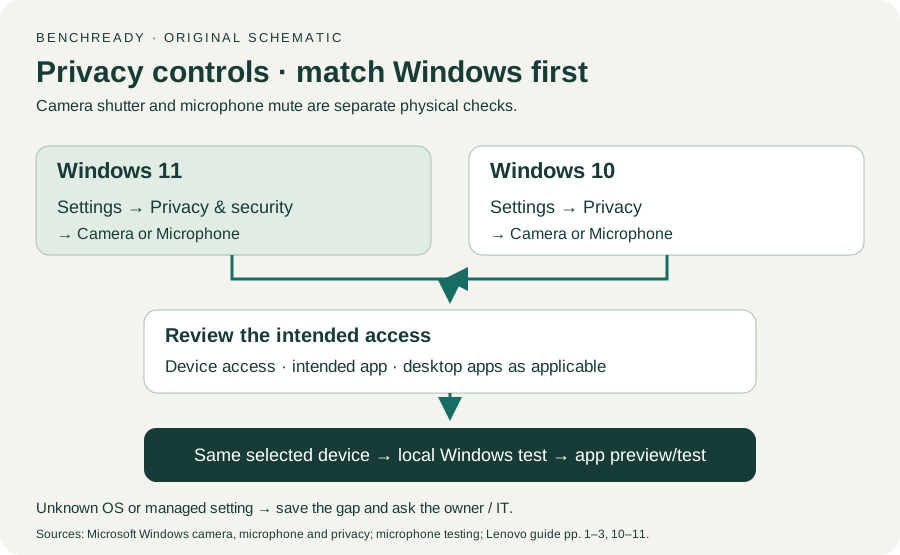
Choose the installed Windows version. Windows 11 uses Settings → Privacy & security → Camera; Windows 10 uses Settings → Privacy → Camera. Unknown version means the setting path remains unconfirmed.
Source: Windows camera, microphone and privacy · How to control camera access → Windows 11 / Windows 10
Review access for the intended app and desktop apps as applicable. If controls are managed, contact IT; grant access only to an app you intend to use.
Source: Windows camera, microphone and privacy · Camera access / app access / desktop apps
Close another active camera app, then compare a local preview with the meeting app’s own preview using the built-in camera. Store only whether an image appeared; no photo or video is needed here.
Source: Windows camera, microphone and privacy; ThinkPad T14 Gen 2 user guide · App access controls; original same-camera preview comparison
A local image with a black meeting preview gives an app-selection or permission lead. Failure across permitted previews with the shutter open goes to Lenovo/IT with the comparison.
Source: ThinkPad T14 Gen 2 user guide · Printed pp. 65–66 → symptoms and applications; original routing
Printed pp. 1–5, 9–14, 16–19, 23–25, 27–33, 62, 65–67 · Checked 2026-10-13
Existing local official PDF/text reviewed for Intel layout, optional hardware, controls, Vantage, power and support
Reference only. Original paraphrase and observation worksheets; no copied images or manual pages.
Windows 11 / Windows 10 → control camera and microphone access · Checked 2026-10-13
OS-specific permission paths, desktop-app controls and privacy limitations
Reference only. Original paraphrase and observation worksheets; no copied images or manual pages.
Select Input / Test an installed microphone · Checked 2026-10-13
Selected input and local Windows test; use installed-version controls
Reference only. Original paraphrase and observation worksheets; no copied images or manual pages.
Original preparation workflow based on the linked documents. No hands-on device repair testing is claimed.