Camera shutter, permissions and app preview
Open task Separate a covered lens, denied access and an app-specific black camera preview.
Device evidence task · ThinkPad T14 Gen 2 Intel
Compare an enrolled finger while keeping a working owner sign-in method available.
Planning estimate for recording observations; excludes charging, backups, drying and service. Not a measured repair time.
Enable JavaScript to record observations. The complete preparation guide is available below.
Confirm this exact unit has the optional fingerprint reader. Search Windows for Sign-in options to inspect availability; an absent reader cannot be fixed through repeated enrollment.
Source: ThinkPad T14 Gen 2 user guide · Printed pp. 2–3 → optional reader; p. 33 → Sign-in options
Confirm your own existing alternate sign-in works privately before testing. Do not remove all sign-in methods or disclose a PIN, password or recovery secret.
Source: ThinkPad T14 Gen 2 user guide · Printed pp. 33, 34–37 → fingerprint/password context; conservative access guard
Use a clean dry uninjured enrolled finger centered on the reader. Keep hard objects and wet or dirty fingers away from its surface.
Source: ThinkPad T14 Gen 2 user guide · Printed p. 33 → enrollment note / maintenance tips
During ordinary sign-in, record whether the existing enrolled finger is recognized. If you already enrolled another suitable finger, record its result separately; adding a new enrollment is not required here.
Source: ThinkPad T14 Gen 2 user guide · Printed p. 33 → fingerprint sign-in / multiple-finger recommendation; original existing-enrollment comparison
If only fingerprint access fails, retain the working alternate sign-in and ask Lenovo/IT to inspect reader and policy status. Stop repeated attempts at an account lockout or recovery prompt.
Source: ThinkPad T14 Gen 2 user guide · Printed pp. 33–37 → sign-in/security; pp. 65–66 → support
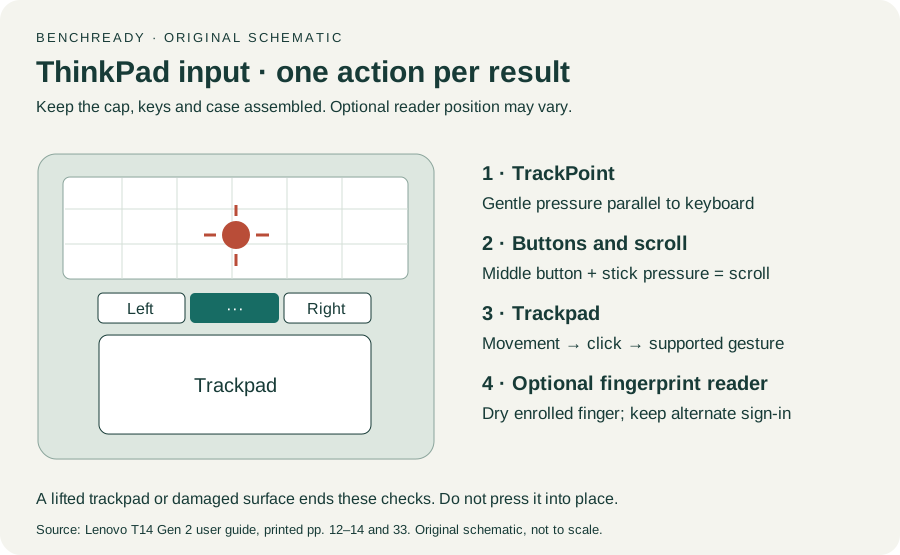
Printed pp. 1–5, 9–14, 16–19, 23–25, 27–33, 62, 65–67 · Checked 2026-10-13
Existing local official PDF/text reviewed for Intel layout, optional hardware, controls, Vantage, power and support
Reference only. Original paraphrase and observation worksheets; no copied images or manual pages.
Original preparation workflow based on the linked documents. No hands-on device repair testing is claimed.