Camera shutter, permissions and app preview
Open task Separate a covered lens, denied access and an app-specific black camera preview.
Device evidence task · ThinkPad T14 Gen 2 Intel
Separate hardware mute, selected input and app permissions from a microphone hardware claim.
Planning estimate for recording observations; excludes charging, backups, drying and service. Not a measured repair time.
Enable JavaScript to record observations. The complete preparation guide is available below.
Inspect the microphone-mute key marked on this keyboard and its on-screen state. The guide distinguishes icon actions from F-key actions through FnLock; use the shown microphone action, not a guessed key sequence.
Source: ThinkPad T14 Gen 2 user guide · Printed pp. 10–11 → special keys / FnLock / microphones
Open Settings → System → Sound and select the intended built-in microphone under Input. Record whether the app had instead selected a headset, dock or other source.
Source: Set up and test microphones in Windows · Set up and test → Sound / Input
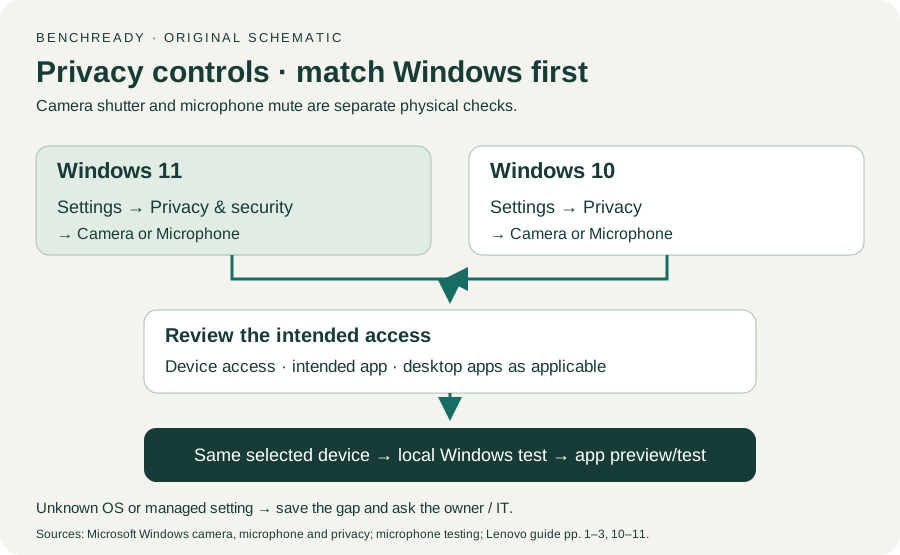
For Windows 11 review Privacy & security → Microphone; for Windows 10 review Privacy → Microphone. Check intended-app and desktop-app access as applicable; managed controls go to IT.
Source: Windows camera, microphone and privacy · Microphone control → Windows 11 / Windows 10
Follow the installed Windows Input test controls using a nonprivate phrase. Record only whether input is detected; any audio sample stays in the Windows tool and is not attached here.
Source: Set up and test microphones in Windows · Test an installed microphone; original privacy-preserving result
Compare the meeting app’s selected microphone and its local test with the Windows result. A working Windows input with a failing app gives an app-selection/permission lead.
Source: Set up and test microphones in Windows; Windows camera, microphone and privacy · Selected Input / intended-app access; original cross-app comparison
Printed pp. 1–5, 9–14, 16–19, 23–25, 27–33, 62, 65–67 · Checked 2026-10-13
Existing local official PDF/text reviewed for Intel layout, optional hardware, controls, Vantage, power and support
Reference only. Original paraphrase and observation worksheets; no copied images or manual pages.
Windows 11 / Windows 10 → control camera and microphone access · Checked 2026-10-13
OS-specific permission paths, desktop-app controls and privacy limitations
Reference only. Original paraphrase and observation worksheets; no copied images or manual pages.
Select Input / Test an installed microphone · Checked 2026-10-13
Selected input and local Windows test; use installed-version controls
Reference only. Original paraphrase and observation worksheets; no copied images or manual pages.
Original preparation workflow based on the linked documents. No hands-on device repair testing is claimed.